Why Does My Wi-Fi Keep Disconnecting? 4 Checks
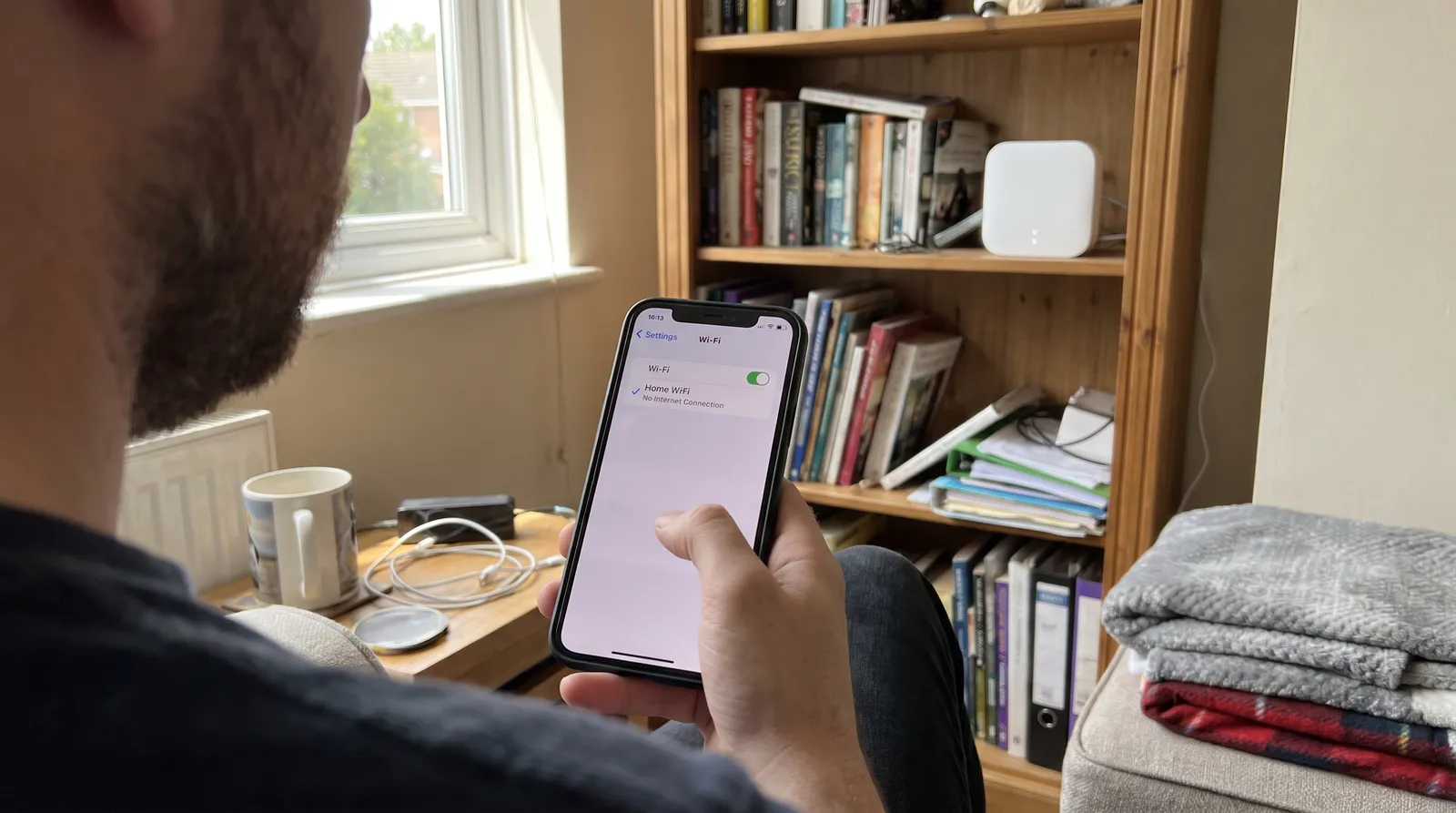
When Wi-Fi keeps disconnecting, the useful question is where the connection is breaking. It could be one device, the router, the modem or your internet provider, two routers running two separate networks, or a wireless hop between your Wi-Fi units. Four checks, done in this order, narrow it down:
- Does one device drop, or all of them? One device points to that device.
- Does it drop right next to the router too? If it does, look at the router, the modem or your internet provider.
- How many network names does your own gear broadcast? Two routers usually mean two networks, and bridge mode is the usual fix.
- Does the far Wi-Fi unit connect by cable or over a wireless hop? Each wireless hop shares airtime, and a wired access point's link back to the router doesn't.
All you need is a phone and one other device. This gives you a diagnosis, not a cure: it tells you where to look next. Here's how to run each check and what the answer means.
Check 1: Does one device drop, or all of them?
The next time the Wi-Fi drops, look at a second device on the same network, in the same spot. A phone and a laptop will do.
- Only one device drops. That points to the device. Apple's and Microsoft's troubleshooting guides both read it that way: if another device connects to the same network, the problem is likely the first device. Restart it, forget the network and join again, install any updates, and turn off any VPN or security software for a test.
- Everything drops at the same moment. The trouble is somewhere all your devices share. Go to check 2.
- Everything drops, but only in one part of the house. Note which part and keep going. Check 4 is the one to watch.
Test in the same spot, because a TV or speaker in a far room may be the only thing out there, so it looks like the only device with a problem. Stand next to it with your phone. If the phone drops there too, it isn't the TV.
Check 2: Does it drop right next to the router too?
Run a two-spot speed test. Use the same phone and the same speed test each time, a minute or two apart. Turn off cellular data first, so the phone can't switch to it when the Wi-Fi gets weak:
- Stand next to the router and run the test. Write down the download and upload numbers.
- Go to the room where the Wi-Fi drops and run it again.
Then compare the two:
- It drops or crawls right next to the router too. Distance isn't the cause. Look at the router, the modem or your internet provider.
- It's fine next to the router, and poor or dropping in the far room. Your internet is reaching the router. That points to the path between the router and that room, so go to checks 3 and 4.
- It's fine in both spots. A speed test shows only one moment, so it can miss a drop that comes and goes. Run the pair again while it's acting up, and write down the times.
Don't expect the reading next to the router to match your plan, because Wi-Fi often comes in below the plan's speed, even up close. The difference between the two spots is what tells you something.
If it drops next to the router:
- Check your provider's outage page or app.
- Restart the modem and the router by unplugging them and plugging them back in.
- Plug a computer into the router with a network cable, if you can. If that connection drops at the same moments, the Wi-Fi isn't the cause.
- If your modem and router are separate boxes, restart the modem with the computer plugged straight into it. If it still drops there, the trouble is the modem or your provider. When you're done, plug the router back in and restart the modem again, because a modem may need that reset before it will connect to the router.
If the provider's line or equipment is at fault, only the provider can fix it. Give them the times you wrote down.
Check 3: How many network names does your own gear broadcast?
Open the Wi-Fi list on your phone and ignore the neighbors' networks. Count the names your own equipment puts out, and note which box each one comes from.
- One name from your router or mesh system, with or without a guest network. Separate 2.4 GHz and 5 GHz names from the same box count as one, too. That's one router, so go to check 4.
- Different names from different boxes, most often the internet provider's router and a mesh kit or second router plugged into it. Two routers usually mean two networks, which is called double NAT. NAT is how a router shares one internet connection among your devices, and here two routers are doing it, one behind the other.
If your provider's router and a second router are both running, count them as two even if you see only one name. Two routers set to the same name are still two networks, and eero warns against running them that way.
To confirm it, open the app or settings page of the router you added and find its internet (WAN) address. If it starts with 192.168. or 10., or with anything from 172.16. to 172.31., another router sits between it and the internet.
Two networks don't always cause drops. Google says double NAT has no noticeable effect on performance for most people. What it does is split the house in two. A phone on one network often can't find a speaker or printer on the other, which looks like a device that's gone missing. And a phone or laptop that has joined both can jump from one to the other when the signal weakens, which feels like a drop.
Bridge mode is the usual fix. It turns off the routing in one box, so only one router runs the house. Google, Netgear and eero all point to the internet provider's box as the one to bridge, so your own system does the routing. Providers differ on what they allow:
- Xfinity's gateways have a bridge mode, but Xfinity says it can't be turned on once its WiFi Extenders are activated.
- AT&T says bridged mode isn't possible on its platform and points to IP Passthrough instead.
- If a gateway can't be bridged, Netgear's fallback is to turn off the gateway's Wi-Fi and put your own router in access point mode, which disables some router features.
Bridging has a cost even when it's done right. On an Xfinity gateway, for one, it turns off the gateway's Wi-Fi and allows only one device on the gateway. Move everything onto your own router first and write down the current settings. If the same box runs your TV or phone service, ask your provider before you change it.
Check 4: Does the far unit connect by cable or over a wireless hop?
Go to the Wi-Fi unit farthest from the router: a mesh unit, an extender or an access point. Look at what's plugged into it.
- A network cable runs back toward the router, directly, through a switch or through a wall jack that's connected at the other end. That unit doesn't depend on a wireless hop.
- Only a power cord, or it's a plug-in extender. It's on a wireless hop.
Some mesh apps will tell you. In eero's app, a unit on a cable shows as "Wired," and a unit on a wireless link shows bars for the strength of that link.
If you have one router and no other Wi-Fi units, there's no hop to check. A far room that drops is probably just too far from the router, or behind too many walls.
If you don't understand backhaul, you don't understand why your Wi-Fi keeps dropping
Backhaul is how each Wi-Fi unit connects back to the router. There are only two ways: over a cable, or over the air, which is the wireless hop.
Wi-Fi is shared. Devices on the same channel take turns, and while one is talking, the others mostly wait. That time on the channel is called airtime. A unit on a wireless hop has to receive your data over the air and then send it on over the air, so the same data uses airtime more than once, often on the channel your phones, TVs and cameras are waiting to use. eero says a wireless link between units competes with your devices for bandwidth. Some mesh systems set a radio aside for the hop, which helps, but it's still a radio link.
Here's how that turns into drops:
- The hop can weaken or fail on its own. Walls, distance and the neighbors' Wi-Fi all work against it. When it falters, everything connected to that unit stalls at once. In eero's app, a unit with no bars has lost its link to the mesh and dropped offline.
- Your phone can't see it. The bars on your phone show the signal to the nearest unit, not that unit's link back to the router. You can have full bars in a room where nothing loads.
- Hops add up. For its own UniFi access points, Ubiquiti says each wireless hop cuts throughput by at least 50%, and it recommends no more than two hops.
A wired access point's link back to the router doesn't share airtime. That link is a cable, so walls, distance and the neighbors' Wi-Fi can't touch it, and Ubiquiti calls hard-wiring the ideal for performance and stability. It doesn't make Wi-Fi perfect: your devices still reach the access point over the air, and they still take turns with each other. A cable removes one wireless link from the path.
Finding a hop doesn't prove the hop is the problem. If it's weak or keeps dropping, which the far-room speed test or the mesh app can show, you have three ways to go:
- Move it. A mesh unit has to sit where it can still hear the one before it. For its own units, eero suggests 20 to 30 feet apart, never more than 50, and halfway between the router and the weak spot, not in it.
- Give that unit a cable. Many mesh systems, eero included, can link their units by Ethernet, and a unit with a cable back works much like an access point. Around Portland, we run that cable: see Ethernet cable installation in Portland.
- Use a wired access point where a cable can reach. It mounts where the coverage is needed, with its own cable back to the network.
Our standard Cat6 run is $499 for up to 300 feet. A wired access point is that run, plus the access point, $99 to mount it and $99 to set it up, with one gateway for the whole network. In October 2026 we quoted one house both ways: $3,125.70 for an eero Wi-Fi 7 mesh system and $5,625.72 for wired access points, though the wired option included more. The full comparison is in mesh vs access points for a large house.
What these checks can't tell you
The checks narrow things down, but they don't prove a cause. If all four come back clean, the cause may be something they can't see: interference on a crowded channel, an overheating or failing router, out-of-date firmware or a damaged cable. Note when the drops happen and what else is running at the time. A pattern is the next best clue.
Questions people ask
Why does my internet keep disconnecting?
Your internet and your Wi-Fi are two separate links. The internet comes from your provider to your modem and router, and the Wi-Fi goes from the router to your devices. If a computer plugged into the router by cable loses the connection at the same moments, look at the router, the modem or your provider. If the cable connection holds while the Wi-Fi drops, it's the Wi-Fi.
How do I know if the problem is my internet provider?
Start with your provider's outage page or app, then restart the modem and router. If a computer plugged straight into the modem still loses the connection, call the provider and give them the times it dropped.
Why does my laptop keep disconnecting from Wi-Fi?
If a phone holds its connection in the same spot, start with the laptop: restart it, forget the network and rejoin, install updates and turn off any VPN for a test. On Windows, Microsoft also suggests setting the Wi-Fi adapter's power saving to maximum performance and unchecking the option that lets the computer turn the adapter off to save power. If the phone drops there too, it isn't the laptop, so run the other checks.
Why does my mesh Wi-Fi keep dropping?
Mesh doesn't rule out any of the first three checks, so run them in order. Check 4 is the one specific to mesh: a unit linked over the air depends on a wireless hop, and when that hop weakens, everything on that unit stalls. If your mesh kit is plugged into your provider's router, check 3 matters too.
Will a Wi-Fi extender help?
It can help a device at the edge of your router's range, but unless it has a cable back, an extender is one more wireless hop. It won't help if the trouble is the device, the modem or your provider.
Will a new router or a faster internet plan fix it?
Only if that's where the trouble is. Check 2 shows whether to look at the router, the modem or your provider at all, and its cable tests help separate them. A new router helps when the router is the cause. A faster plan raises the speed coming into the house, but it doesn't change how the Wi-Fi gets from the router to a far room.
The four-check drop test
The next time it happens, run these in order and write down each answer.
- One device, or all of them? When it drops, look at a second device in the same spot. One device points to that device. If it's all of them, go to the next check.
- Right next to the router too? Run a speed test next to the router and again in the slow room. If it drops or crawls next to the router, look at the router, the modem or your provider. If it's only the far room, go to the next check.
- How many network names? Count the names your own gear broadcasts and the boxes putting them out. Two routers probably mean two networks, which may or may not be causing the drops, and bridge mode is the usual fix. With one router, go to the next check.
- Cable or wireless hop? See what's plugged into the far unit, or look in its app. If it has only power, it's on a wireless hop, and if that hop is weak or keeps dropping, move the unit or give it a cable. If a cable runs back, the hop isn't the cause.
Your free first walkthrough
If the checks point inside the house and you're in the Portland area, the first walkthrough is free. We walk the house with you, take photos, go over what your four checks showed and where cable could run, and recommend what we'd do. It's a consultation, with no hands-on work. If you want hands-on troubleshooting after that, it's a paid service call at our standard $399 rate, which covers travel and the first two hours. If the checks point to your internet provider, start with them, because a walkthrough won't change what's on their line.
Velara is licensed, bonded and insured (Oregon CCB #256333), with 130+ jobs completed since 2024. We install home networks across the Portland area. See home network installation in Portland and home network and Wi-Fi installation in Lake Oswego.